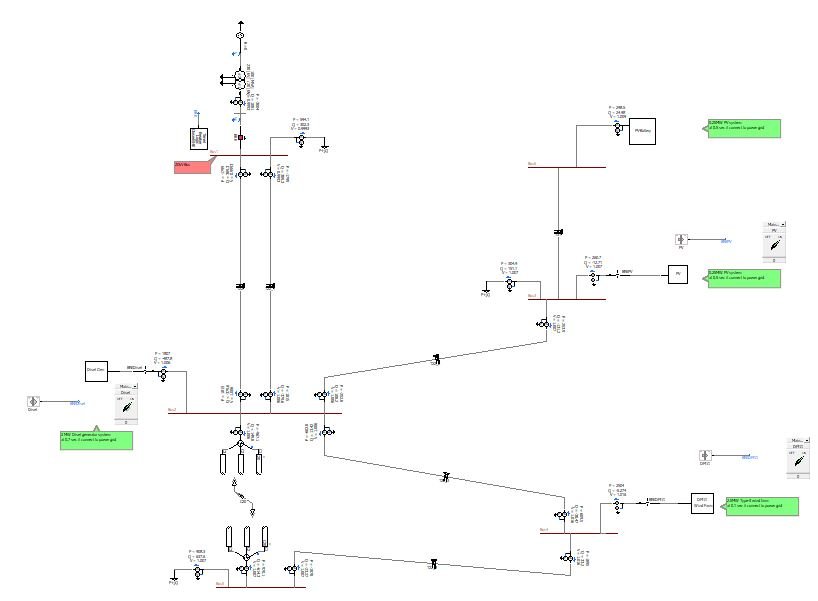
Generating a reactive power capability curve for a synchronous generator is more than just a theoretical exercise; it’s a critical step for ensuring reliable and stable grid operation. If you’re a power systems engineer or a student looking to master the practical application of simulation tools, understanding the Step-by-Step Methodology for Reactive Power Curve Generation in PSCAD is non-negotiable. This isn't just about plotting a graph; it's about defining the safe operating limits of a generator, guiding control strategies, and safeguarding system stability. Let's peel back the layers and walk through the process, turning complex theory into actionable steps you can implement today.
At a Glance: Your Roadmap to PSCAD P-Q Curves
- Understand the 'Why': Reactive power (Q) is key to voltage stability; P-Q curves define a generator's safe operating limits.
- Model It Right: Accurately set up your synchronous machine and excitation system in PSCAD.
- Simulate Systematically: Design simulations to vary reactive power output while keeping real power constant.
- Collect and Process: Extract P, Q, and voltage data from multiple simulation runs.
- Plot and Interpret: Graph your data, identify operational limits (stator, rotor, stability), and understand the implications for grid operation.
- Avoid Pitfalls: Be aware of common errors like incorrect parameters or inadequate data points.
Why Reactive Power Curves Are Your Generator's Best Friend
Think of a generator's reactive power (Q) capability curve, also known as a P-Q curve or D-curve, as its operational passport. This vital diagram illustrates the maximum real power (P) a generator can deliver for a given reactive power output, and vice-versa, without overheating or losing synchronism. It's not just a nice-to-have; it's fundamental for:
- Voltage Regulation: Reactive power directly impacts system voltage. Too little, and voltages drop; too much, and they rise. The P-Q curve shows how much reactive power your generator can realistically provide to support voltage.
- System Stability: Operating outside the curve's limits can lead to voltage collapse or transient instability. The curve acts as a clear boundary for safe operation.
- Operational Planning: Grid operators use these curves to schedule generation, manage transmission line loading, and plan for contingencies, ensuring efficient and secure power flow.
- Design & Upgrade: For engineers designing new plants or upgrading existing ones, the P-Q curve is a critical specification that impacts equipment sizing and system integration.
Sources of reactive power in a system are diverse, ranging from synchronous generators and capacitor banks to advanced Flexible AC Transmission System (FACTS) devices like STATCOMs and SVCs. A healthy balance of these reactive power sources is paramount for stable system operation, preventing scenarios where inductive loads starve the grid of necessary lagging VARs or excessive capacitance creates leading VARs, both of which can lead to operational headaches.
Prepping Your PSCAD Workbench: Essential Components
Before you can generate a P-Q curve, you need to set up your PSCAD environment correctly. PSCAD is a powerful electromagnetic transient program (EMTDC/PSCAD) that allows for detailed modeling of power systems. It’s the perfect tool for dynamic analysis of generators, especially when you need to understand their behavior under varying excitation.
Your primary focus will be on these core components:
- Synchronous Machine (SM): This is the heart of your model. PSCAD offers various synchronous machine models, from simplified to detailed (e.g., Round Rotor, Salient Pole, Subsynchronous Resonance models). For P-Q curve generation, a standard synchronous machine model with accurate parameters is usually sufficient.
- Excitation System: This critical component controls the field current of the synchronous machine, thereby regulating its terminal voltage and reactive power output. PSCAD includes a library of IEEE standard excitation systems (e.g., IEEE Type AC4A, ST1A, DC1A). Choosing the right type and configuring it correctly is crucial, as it directly influences the generator's reactive power capability.
- Turbine Governor (Optional but good practice): While primarily affecting real power (P), a governor model ensures that the real power output remains constant during your reactive power variations. This simplifies the analysis of the P-Q relationship.
- Load/Grid Model: Your generator needs something to connect to. This could be a simple infinite bus, a voltage source, or a more complex network model, depending on your study's scope. For initial P-Q curve generation, an infinite bus is often sufficient to represent a strong grid connection.
Understanding [essential PSCAD generator modeling techniques][placeholder_link slug="pscad-generator-modeling-essentials"] is foundational here. Without a robust and accurate model, your P-Q curves will be, at best, misleading.
Pitfall to Avoid: Generic Parameters
Never rely on default or generic parameters for your synchronous machine or excitation system. Always use the actual design data provided by the manufacturer (e.g., MVA rating, terminal voltage, reactances Xd, Xq, X'd, X''d, time constants T'do, T''do, and excitation system gains and limits). Inaccurate parameters lead to inaccurate curves, making your analysis unreliable.
Phase 1: Setting Up Your Generator Model in PSCAD
Let's get practical. Here’s how you build the foundational model in PSCAD.
Step 1: Instantiate the Synchronous Machine
- Open PSCAD: Start a new project or open an existing one.
- Add the Synchronous Machine: From the PSCAD master library, drag and drop the
Synchronous Machinecomponent onto your main page. For most P-Q studies, theRound RotororSalient Polemodel underMachines>Synchronous Machineswill suffice. - Input Nameplate Data: Double-click the synchronous machine component to open its properties. This is where you input all the crucial parameters from your generator's specifications. Key inputs include:
- Rated Power (MVA): The generator's apparent power rating.
- Rated Voltage (kV): The nominal terminal voltage.
- Frequency (Hz): The system frequency.
- Number of Poles: Determines synchronous speed.
- Reactances (pu): Xd, Xq, X'd, X''d, Xl (direct-axis synchronous, quadrature-axis synchronous, direct-axis transient, direct-axis subtransient, leakage reactance).
- Time Constants (s): T'do, T''do (direct-axis open-circuit transient, direct-axis open-circuit subtransient time constants).
- Resistances (pu): Ra (stator resistance).
- Inertia Constant (H, s): For dynamic stability studies, less critical for steady-state P-Q.
- Saturation Characteristics: If available, include these for more accurate modeling, especially at higher excitation levels.
Step 2: Configure the Excitation System
The excitation system dictates how the generator responds to voltage changes and controls its reactive power output.
- Add the Excitation System: From the PSCAD master library, navigate to
Controllers>Excitation Systemsand select an appropriate IEEE standard model (e.g.,IEEE Type AC4A). - Connect to the SM: Wire the excitation system to the
Excitationinput of your synchronous machine. The excitation system typically provides the field voltage (Efd) to the generator. - Input Parameters: Configure the excitation system's gains (KA, KF, etc.), time constants (TA, TB, TC, TE, TF), and most importantly, its limits (Vrmax, Vrmin – maximum and minimum field voltage limits). These limits directly determine the boundaries of your reactive power curve.
- Voltage Reference: The excitation system needs a voltage reference. Connect its voltage input (
Vt) to the terminal voltage measurement of your synchronous machine.
For a deeper dive into [proper excitation system configuration][placeholder_link slug="excitation-system-configuration-guide"], remember that these parameters are often provided by the generator manufacturer and are crucial for realistic simulations.
Step 3: Integrate the Governor (Recommended)
While not strictly required for a static P-Q curve, a governor model helps maintain constant real power output, isolating the P-Q relationship.
- Add the Governor: From
Controllers>Governors, select an appropriate model (e.g.,IEEE Type G1). - Connect to the SM: Wire the governor to the
Mechanical Power Referenceinput of your synchronous machine. - Input Parameters: Configure its droop, time constants, and limits.
- Speed Reference: The governor needs a speed reference. Connect its speed input (
wm) to the synchronous machine's speed measurement.
Step 4: Connect to the Grid
- Add an Infinite Bus: For simplicity, use a
Three Phase SourcefromSources>Three Phase Sources. Configure its voltage, frequency, and phase angle (typically 0 degrees). This acts as a stiff grid. - Add Transformers/Lines (If necessary): If your generator is connected through a step-up transformer and/or transmission lines, add these components and their parameters for a more realistic interface.
- Circuit Breakers: Include circuit breakers for connection and disconnection, if you plan to simulate switching events.
Mini-Example: 500 MVA Generator Setup
Imagine a 500 MVA, 22 kV, 60 Hz synchronous generator. In PSCAD, you'd input these base values. Its reactances (Xd=1.8, Xq=1.7, X'd=0.3, X''d=0.2 pu) and time constants (T'do=8s, T''do=0.03s) would be entered. For the excitation system, an IEEE AC4A model might be used, with its Vrmax (e.g., 6.0 pu) and Vrmin (e.g., -5.0 pu) set according to manufacturer data. This detailed parameter entry forms the bedrock of an accurate P-Q curve.
Phase 2: Designing the Simulation for P-Q Curve Generation
Now that your model is built, you need to design a simulation strategy to sweep through the generator's operating range. The goal is to collect data points of real power (P) and reactive power (Q) at varying excitation levels, typically while maintaining a constant terminal voltage.
Step 1: Measuring Key Quantities
You’ll need to monitor:
- Real Power (P): Use a
Three Phase Power Metercomponent connected to the generator's terminal. - Reactive Power (Q): Also measured by the
Three Phase Power Meter. - Terminal Voltage (V): Use a
Three Phase RMS Meterto get the RMS voltage at the generator terminals. - Field Current (Ifd) / Field Voltage (Efd): To track excitation limits.
- Stator Current (Is): Use a
Three Phase RMS Meterto monitor the stator current, which directly relates to the MVA limit.
Connect these meters toOutput Channelcomponents (recorders) in PSCAD so their data can be logged during the simulation.
Step 2: Implementing Control for Reactive Power Variation
To generate the curve, you need to systematically vary the generator's reactive power output. You can do this by:
- Varying the Excitation System's Voltage Reference (Vt_ref): This is the most common and intuitive method.
- Add a
RamporConstantcomponent to provide a reference voltage to the excitation system's voltage regulator. - You'll perform multiple simulations. In each simulation, set the generator's real power (P) to a desired constant level (e.g., 0.5 pu, 0.8 pu, 1.0 pu). Then, gradually change the
Vt_refover time (if using a ramp for a single run) or in discrete steps (for multiple runs) to force the generator to operate at different reactive power levels. - Example: For one simulation, fix P at 0.8 pu. Then, run the simulation multiple times, each time adjusting the
Vt_ref(or directly the reactive power setpoint if using a Q-controller) to sweep from highly under-excited (leading VARs) to highly over-excited (lagging VARs) operation.
- Directly Controlling Reactive Power (Q-control): Some advanced excitation systems or custom controllers allow for direct reactive power setpoint control. This simplifies the process, as you directly command the Q output.
Step 3: Setting Up Simulation Controls
- Simulation Duration: Each simulation run should be long enough for the system to reach a steady state after a change in excitation or power. Typically, 5-10 seconds is sufficient.
- Time Step: A small time step (e.g., 50 microseconds) is essential for accurate EMT simulations.
- Load Flow (Initial Conditions): Ensure your simulation starts from a stable operating point. PSCAD's built-in
Load Flowroutine can help initialize the system parameters, especially the generator's angle and voltage, for a smooth start. This ensures that the system begins in a physically realistic state, avoiding transient startup issues that could skew your results.
Best Practice: Automating Your Sweeps
Manually changing excitation and running simulations for dozens of points can be tedious. PSCAD offers scripting capabilities (using Fortran or Python through PSCAD Automation) that allow you to:
- Loop through parameter changes: Automate the variation of
Vt_refor Q setpoints. - Run multiple simulations: Execute numerous runs with different settings.
- Collect data automatically: Export results to CSV files after each run.
This automation is invaluable for [efficient simulation data post-processing][placeholder_link slug="simulation-data-post-processing"] and generating a dense, smooth P-Q curve.
Phase 3: Executing the Simulation and Collecting Data
This is where the rubber meets the road. You’ll be running your PSCAD model and gathering the critical data points.
Step 1: Running Multiple Simulations
You'll need to generate curves for various real power (P) outputs. A typical approach involves:
- Choose a Real Power (P) Level: For example, start with P = 1.0 pu (rated power).
- Vary Excitation System Reference:
- Method A (Discrete Steps): Run the simulation repeatedly. In each run, adjust the
Vt_refor reactive power setpoint to a slightly different value. Start from a very lowVt_ref(under-excited, leading VARs) and gradually increase it to a very highVt_ref(over-excited, lagging VARs). For each stable operating point, record P, Q, and terminal voltage. - Method B (Ramp in a single run): If your excitation system can respond stably to a slow ramp, you can sweep the
Vt_refover a long simulation run while recording P and Q. However, discrete steps offer more control and ensure steady-state measurements.
- Repeat for Different P Levels: Once you have a full sweep for P = 1.0 pu, repeat the entire process for other significant real power levels (e.g., P = 0.8 pu, P = 0.5 pu, P = 0.2 pu, P = 0 pu). The capability curve changes significantly with real power output.
- Monitor Limits: During each run, pay close attention to the generator's stator current, rotor current (field current), and terminal voltage. These will ultimately define the boundaries of your P-Q curve. If the simulation becomes unstable or hits a hard limit, record that point as a boundary.
Step 2: Logging and Exporting Data
- PSCAD Output Channels: Ensure all your
Output Channelcomponents are properly configured to log data. - Export Data: After each simulation run, or using automation, export the recorded P, Q, V, Is, and Ifd data. PSCAD can export directly to
.csvor.txtformats, which are easily imported into other analysis tools.
Common Question: How Many Data Points Do I Need?
There's no magic number, but more data points lead to a smoother, more accurate curve. Aim for enough points to clearly define the shape of the curve, especially near the limiting regions. For each P level, 15-30 stable operating points distributed across the entire reactive power range should provide a good resolution. If the curve is relatively flat in a section, you can use fewer points; if it's sharply curving, you'll need more.
Phase 4: Post-Processing and Plotting the P-Q Curve
Once you have your raw data, the final step is to process it and visualize the reactive power capability curve.
Step 1: Data Consolidation
Gather all your exported data files (e.g., from different P levels) into a single spreadsheet or data structure. You'll typically have columns for Real Power (P), Reactive Power (Q), Terminal Voltage (V), Stator Current (Is), and Field Current (Ifd).
Step 2: Plotting the Operating Points
Use a plotting tool like Microsoft Excel, MATLAB, Python (with libraries like Matplotlib), or even PSCAD's built-in plotting capabilities to create a scatter plot with Reactive Power (Q) on the x-axis and Real Power (P) on the y-axis.
Plot the data points for each constant real power level. This will give you a series of horizontal segments.
Step 3: Identifying and Superimposing Limits
The true capability curve isn't just the collection of operating points; it's defined by the envelopes of these points, which are dictated by the generator's physical and electrical limits:
- Stator Current (MVA) Limit: This is usually a circular arc centered at the origin (0,0) on the P-Q plane, representing the generator's apparent power (MVA) rating.
S_rated = sqrt(P^2 + Q^2)Q_limit = sqrt(S_rated^2 - P^2)- Plot this arc. Any operating point should fall within this MVA circle.
- Rotor Current (Field Current) Limit: This limit defines the maximum and minimum reactive power output.
- Maximum Excitation (Over-excited): Limited by the maximum field current (
Ifd_max) the rotor winding can safely carry without overheating. This typically defines the upper (lagging VAR) part of the curve. - Minimum Excitation (Under-excited): Limited by the minimum field current (
Ifd_min) required to maintain terminal voltage and stability. This defines the lower (leading VAR) part of the curve. - These limits are often a nearly vertical line on the P-Q plane, shifting slightly with P. In your data, observe the
Ifdvalues. WhereIfdapproachesIfd_maxorIfd_min, that marks a boundary.
- Steady-State Stability Limit: This limit often manifests as a slightly curved line on the P-Q plane, particularly in the under-excited region. As a generator becomes heavily under-excited, the power angle increases, approaching the steady-state stability limit (typically 90 degrees for a simple model). Beyond this point, the generator can lose synchronism. Your PSCAD simulations should show instability (loss of synchronism) if you push the generator too far into the under-excited region. The last stable point before instability marks this limit.
- End-Region Heating Limit: Predominant in the under-excited region, this limit relates to heating in the stator end regions due to increased flux leakage. This can be represented as a straight line or a slightly curved line below the rotor heating limit in the under-excited zone.
Overlay these theoretical and observed limits onto your scatter plot. The composite of these limiting curves defines the safe operating region of your generator.
Practical Tip: Validation with Theoretical Curves
Many textbooks and manufacturer data sheets provide theoretical P-Q curves based on simplified models. Compare your PSCAD-generated curve with these. Discrepancies can highlight incorrect parameters, model simplifications, or simulation errors. This is crucial for building trust in your results and for [troubleshooting common PSCAD simulation issues][placeholder_link slug="troubleshooting-pscad-simulations"].
Interpreting Your Reactive Power Curve: What PSCAD Tells You
Once you have your complete P-Q curve, you're no longer just looking at a graph; you're looking at a generator's operational fingerprint.
- Over-excited Operation (Lagging VARs): This is typically the region where the generator supplies reactive power to the grid, helping to support voltage. It's often limited by rotor heating (field current) and stator current.
- Under-excited Operation (Leading VARs): In this region, the generator absorbs reactive power from the grid. This can be useful when the system has excess reactive power, but pushing too far into this region risks rotor end-region heating and, critically, a loss of steady-state stability, potentially leading to a blackout. The [maintaining power system voltage stability][placeholder_link slug="power-system-voltage-stability-analysis"] section covers this in more depth.
- The "Hump" and the "Knee": Notice the shape. The over-excited region often has a "hump" where Q capability is highest at slightly less than rated P. The under-excited region might show a "knee" where the stability limit becomes the dominant constraint.
- Impact of Real Power: Observe how the reactive power capability shrinks as real power output increases. At full real power, the reactive power range is the narrowest, reflecting the limited thermal capacity of the generator. This emphasizes the trade-off between P and Q.
The capability curve guides operators on how much reactive power they can inject or absorb at different real power outputs without compromising the generator's integrity or system stability. It’s also invaluable for system planners when evaluating the voltage support capabilities of their generation fleet.
Common Pitfalls and How to Avoid Them
Even with a detailed methodology, it's easy to stumble. Here are common issues and how to sidestep them:
- Incorrect Machine Parameters: As stressed earlier, this is the biggest culprit. Double-check every parameter against manufacturer data. A slight error in Xd or Xq can significantly distort the curve.
- Unrealistic Excitation Limits: If your excitation system's Vrmax/Vrmin are set too high or too low, your curve will extend beyond or fall short of the actual generator capability. Verify these with the actual exciter specifications.
- Ignoring Terminal Voltage: The P-Q curve is typically generated assuming the generator's terminal voltage is held at its rated value. If your simulation allows the terminal voltage to sag or swell significantly, your P-Q points will be misleading. Ensure your excitation system is regulating voltage effectively, or normalize your data.
- Simulation Instability: If your simulation keeps crashing or showing oscillations, it might be due to incorrect initial conditions, overly aggressive control settings, or pushing the generator beyond its actual stability limits. Use PSCAD's
Load Flowutility to set initial conditions, start with small changes, and observe the machine's behavior carefully. - Insufficient Data Points: A sparse dataset will result in a jagged, unrepresentative curve. Invest the time (or automate with scripts) to collect enough points for a smooth, accurate representation.
- Misinterpreting Stator vs. Rotor Limits: Remember that the stator current (MVA) limit forms a roughly circular arc, while the rotor current (field heating) limits are more vertical lines. Don't confuse which limit is active in a given region.
Advanced Considerations: Beyond the Basic Curve
While the steps above provide a robust framework for [generating reactive power curves in PSCAD][placeholder_link slug="how-to-generate-reactive-power-capability-curve-using-pscad"], there are nuances that can enhance your analysis:
- Network Impedance Impact: A generator's actual reactive power capability at the point of common coupling (PCC) can be influenced by the impedance of the connecting transformer and transmission lines. Consider modeling these components accurately to get a more system-specific P-Q curve.
- Dynamic P-Q Curves: The steady-state P-Q curve assumes slowly changing conditions. In reality, during transient events, the generator might briefly operate outside these limits. Dynamic P-Q curves (which are more complex to derive) consider transient overloads and dynamic stability.
- Automated Curve Tracing: Advanced PSCAD users can leverage
MATLABorPythonscripting combined with PSCAD's automation features to automatically trace the actual limit boundaries (e.g., finding the exact point of instability) rather than just observing them. This provides highly precise capability curves. - Reactive Power Control Strategies: The P-Q curve isn't static in its application; it forms the basis for implementing advanced reactive power control strategies, whether through AVR setpoints, STATCOMs, or other FACTS devices.
Empowering Your System Analysis
Mastering the step-by-step methodology for reactive power curve generation in PSCAD is more than just learning a software function. It's about gaining a deep, practical understanding of how synchronous generators interact with the grid, how to model their critical characteristics, and how to interpret their operational limits. This knowledge empowers you to:
- Conduct more accurate voltage stability studies.
- Assess generator performance under various grid conditions.
- Contribute to robust system planning and operation.
- Diagnose potential issues before they become critical failures.
By meticulously following these steps, you're not just drawing a curve; you're drawing the line between stable operation and potential system collapse. Your PSCAD simulations become a powerful laboratory for understanding and optimizing one of the most vital aspects of power system engineering. So, open up PSCAD, get your parameters ready, and start generating insights that truly make a difference.